
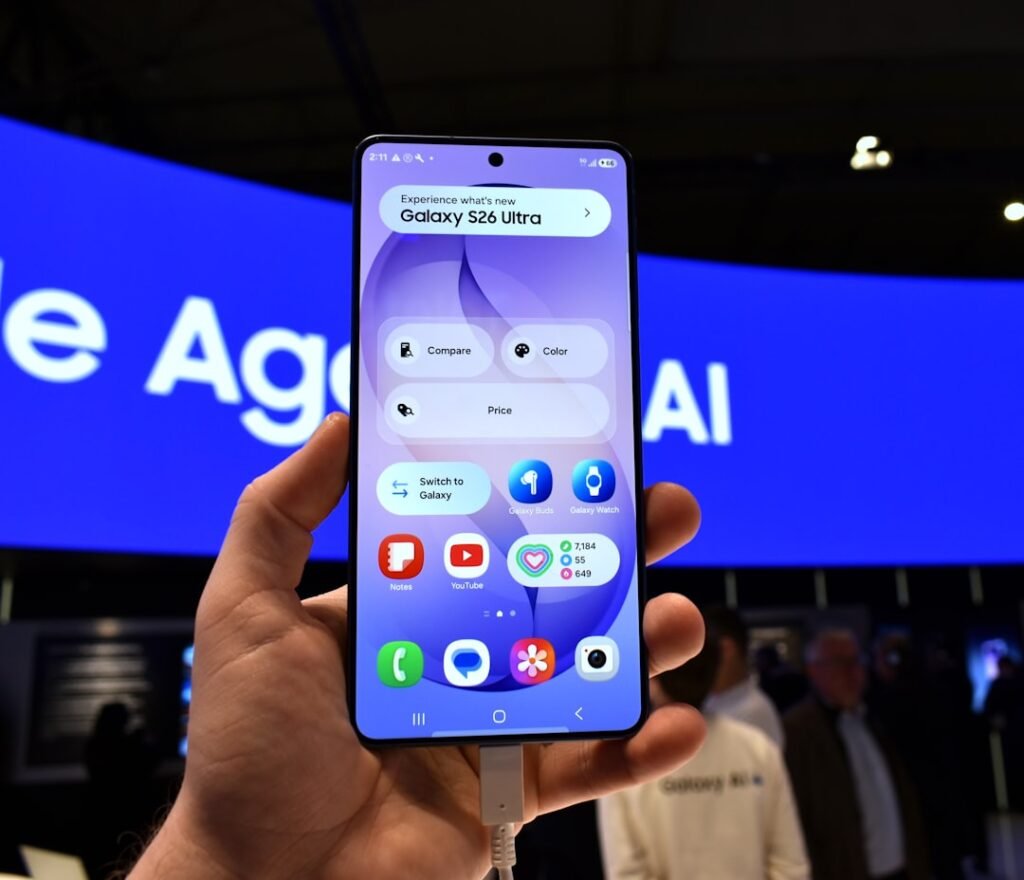
If your Samsung phone is not charging, do not assume the battery has failed straight away. Charging problems are commonly caused by a damaged cable, weak power adapter, debris in the USB-C port, a moisture warning, a deeply discharged battery, or a temporary software issue.
The safest approach is to test the external charging setup first, then move to software checks. You should not open the phone or attempt battery repair unless you are properly trained and equipped.
Quick answer
Try another trusted cable, charger and wall outlet. Inspect the USB-C port gently for debris, check for a moisture warning, leave the phone connected for at least 30 minutes, and restart it if the screen still responds. If the phone is swollen, smoking, unusually hot or smells burnt, stop using and charging it and get professional help.
Common causes
- Faulty USB-C cable or charger
- Low-power or incompatible adapter
- Dust or lint in the charging port
- Moisture detected in the USB port
- Battery is completely drained
- Temporary Android or One UI glitch
- Worn charging port or battery hardware issue
1. Test another cable, charger and outlet
Use a cable and charger you know can charge another compatible device. Plug directly into a wall outlet while testing. Avoid relying on a computer USB port, cheap hub or questionable extension accessory because they may provide too little power.
Inspect the cable for fraying, bent connectors, discoloration or looseness. Stop using an accessory if it becomes unusually hot or smells burnt.
2. Inspect the USB-C charging port
Use a flashlight to check the port for lint, dust or other debris. Pocket lint can prevent the cable from seating fully even if the connector looks normal from the outside.
If loose debris is visible, remove it gently with a dry, non-metal method or have the port professionally cleaned. Do not insert needles, pins or metal tweezers.
3. Check for a moisture warning
Many Samsung phones block wired charging when moisture is detected in the USB port. If you see a moisture or water-drop warning, disconnect the cable and allow the port to dry naturally in a ventilated place.
Do not use a hair dryer, oven, heat gun, compressed air or liquid cleaner. Heat and pressure can damage the connector and seals.
4. Leave the phone connected for 30 minutes
If the battery is deeply discharged, the screen may stay black for several minutes after you connect a charger. Leave the phone connected to a reliable charger for about 30 minutes before deciding it is not responding.
5. Restart the phone
If the phone is still on, restart it normally and test charging again. Temporary system or USB-detection glitches can sometimes clear after a restart.
If the phone is frozen, use the force-restart method recommended for your Samsung model. A force restart is different from a factory reset and normally does not erase your personal data.
6. Try wireless charging if supported
If your Galaxy model supports wireless charging, remove a thick or metal case and test with a compatible wireless charger. If wireless charging works but wired charging does not, the cable or USB-C port becomes a stronger suspect.
7. Check software updates and device care
If the phone powers on, check Settings > Software update and install appropriate updates after backing up important data. You can also review Settings > Battery and device care for battery or device-health alerts.
8. Know when to stop troubleshooting
Professional inspection is sensible if several known-good chargers fail, the USB-C connector feels loose, charging only works when the cable is held at an angle, or the phone repeatedly disconnects from power.
What not to do
- Do not force metal objects into the charging port.
- Do not keep charging through a moisture warning.
- Do not use damaged or overheating chargers.
- Do not factory-reset the phone before trying safer, simpler checks.
Frequently asked questions
Why does my Samsung phone charge slowly?
A weak charger, damaged cable, heat, heavy phone use, battery wear or disabled fast charging can all reduce charging speed. First test a compatible charger and leave the phone idle while charging.
Can lint stop USB-C charging?
Yes. Packed lint can prevent the plug from making a solid connection. Inspect carefully and use only a safe, dry, non-metal cleaning method.
Should I ignore a moisture warning if the phone looks dry?
No. Disconnect wired power and let the port dry naturally. Condensation or moisture may be present even if you cannot see it.
Related HowToFixT guides
- Samsung Phone Overheating? Causes and Safe Fixes
- Android Phone Running Slow? 10 Ways to Speed It Up
- More Samsung & Android troubleshooting guides
Featured photo: Gavin Phillips via Unsplash.
Pingback: Samsung Phone Overheating? Causes and Safe Fixes That Help - howtofixt.com
Pingback: Android Phone Running Slow? 10 Safe Ways to Speed It Up - howtofixt.com