
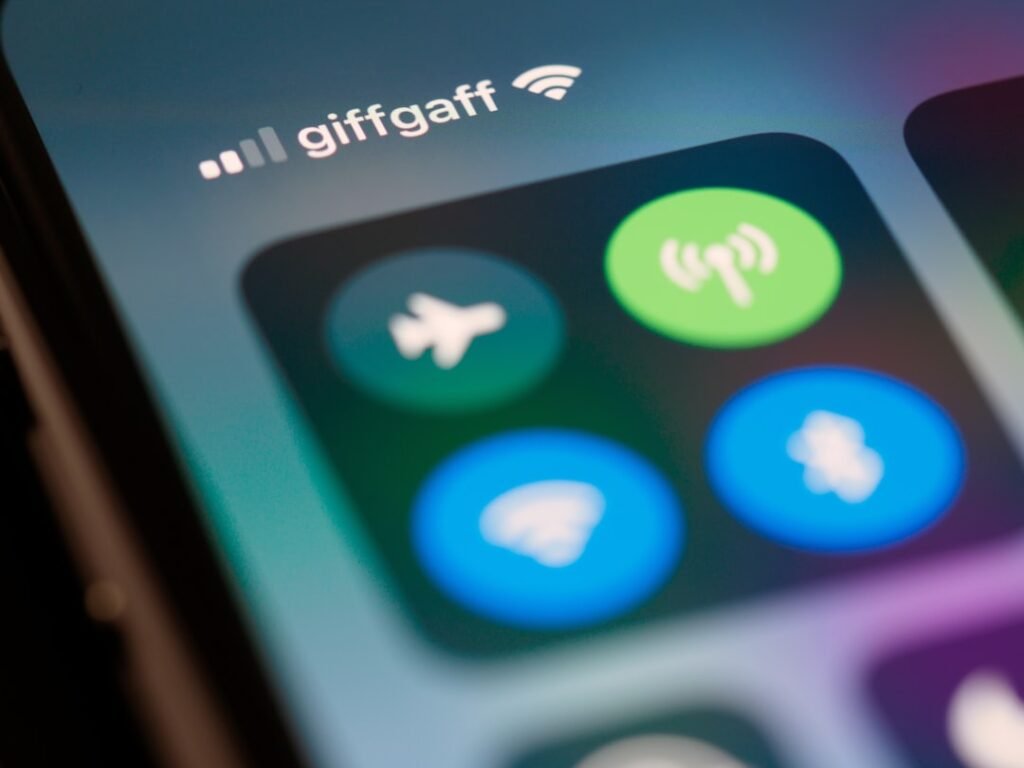
When your iPhone shows the Wi-Fi icon but websites, apps or messages refuse to load, it usually means the phone is connected to the local wireless network but something is blocking access to the wider internet.
The fastest way to troubleshoot it is to work from the outside in: first check whether the whole network is affected, then refresh the iPhone connection, and only use deeper network resets if simpler steps fail.
Quick answer
Test another device on the same Wi-Fi. If every device is offline, restart the modem/router and check for an internet-service outage. If only the iPhone is affected, toggle Wi-Fi off and on, forget and rejoin the network, disable VPN temporarily, and reset network settings only if the problem continues.
What this problem usually means
- The router is connected locally but the internet service is down.
- The iPhone has stale Wi-Fi or IP settings.
- A VPN, DNS profile or security app is interfering.
- The Wi-Fi signal is weak or unstable.
- The router has a temporary software or connection problem.
1. Test another device on the same Wi-Fi
Connect another phone, tablet or laptop to the same network.
- If nothing can access the internet: focus on the router, modem or internet provider.
- If only your iPhone has the problem: continue troubleshooting the iPhone.
This simple comparison prevents you from changing phone settings when the real issue is outside the phone.
2. Turn Wi-Fi off and back on
Open Settings > Wi-Fi, switch Wi-Fi off, wait about 10 seconds, and switch it on again. Then reconnect to your network.
This refreshes the wireless connection without deleting any saved networks or passwords.
3. Restart the iPhone and the network equipment
Restart the iPhone normally. If other devices are also affected, unplug the modem and router from power. Wait about 60 seconds, reconnect the modem first, then the router, and allow several minutes for the status lights to stabilize.
Avoid pressing the router’s physical reset button unless your provider or router manufacturer specifically tells you to. That button can erase the router configuration.
4. Forget the Wi-Fi network and reconnect
Go to Settings > Wi-Fi, tap the information button next to the network, choose Forget This Network, then reconnect and enter the Wi-Fi password again.
This removes saved connection details for that network. Make sure you know the Wi-Fi password before forgetting it. For a work or school network, ask the administrator before changing its configuration.
5. Temporarily disable VPN or custom security apps
If you use a VPN, DNS-changing app, firewall or security profile, turn it off temporarily and test the connection again. These tools can sometimes block traffic even while the Wi-Fi connection itself remains active.
If the internet works as soon as the VPN is disabled, check the VPN provider’s server status or configuration before turning it back on.
6. Check for a captive portal
Hotel, airport, cafe and workplace Wi-Fi networks may require you to open a sign-in page before internet access is allowed. Open Safari and visit a normal website. If a sign-in page appears, complete the network’s login process.
7. Check for an internet-service outage
If all devices are offline, use mobile data to check your internet provider’s service-status page, app or support channel. Also look at the modem or router’s Internet/WAN indicator. A red, amber or missing internet light can point to an upstream problem.
8. Reset network settings only if needed
If the issue affects only the iPhone and simpler fixes have not helped, go to Settings > General > Transfer or Reset iPhone > Reset > Reset Network Settings.
This resets saved Wi-Fi networks and passwords, cellular settings, and VPN and APN settings. It does not erase your photos or apps. Keep the Wi-Fi password available. If your device or network is managed by a school or employer, consult its IT administrator before resetting.
What not to do
- Do not factory-reset the iPhone as an early troubleshooting step.
- Do not repeatedly reset the router without recording its configuration.
- Do not install random DNS or “Wi-Fi booster” apps from unknown developers.
- Do not share your Wi-Fi password with anyone claiming they need it to diagnose the issue remotely.
When to get more help
Contact your internet provider if every device remains offline after a restart or the modem shows an internet/WAN fault. If only the iPhone fails on several known-good Wi-Fi networks, Apple Support or a qualified technician can help rule out a device-specific software or hardware problem.
Frequently asked questions
Why does my iPhone say it is connected to Wi-Fi when there is no internet?
The Wi-Fi icon only confirms a connection between the iPhone and the wireless router. The router can still lose its connection to the internet provider.
Will resetting network settings delete my photos?
No. It does not erase photos, apps or documents, but it removes saved Wi-Fi networks and related network preferences.
Why does Wi-Fi work on other phones but not mine?
The iPhone may have stale network settings, a VPN/DNS issue or a device-specific software problem. Forgetting the network and reconnecting is a good first step.
Sources and update notes
Wi-Fi and network-reset guidance checked: . Clarified saved-password and managed-network precautions using Apple Support documentation. This is a documentation review, not a test of every network or device.
Related HowToFixT guides
- iPhone Not Charging? 8 Safe Fixes to Try First
- Why Is My iPhone Battery Draining So Fast?
- Browse Wi-Fi & Connectivity guides
Featured photo: Brett Jordan via Unsplash.
Pingback: Android Wi-Fi Connected but No Internet? 9 Fixes to Try - howtofixt.com
Pingback: Phone Keeps Disconnecting from Wi-Fi? 9 Fixes | HowToFixT
Pingback: Wi-Fi Slow on Every Device? 10 Fixes | HowToFixT