
Quick answer
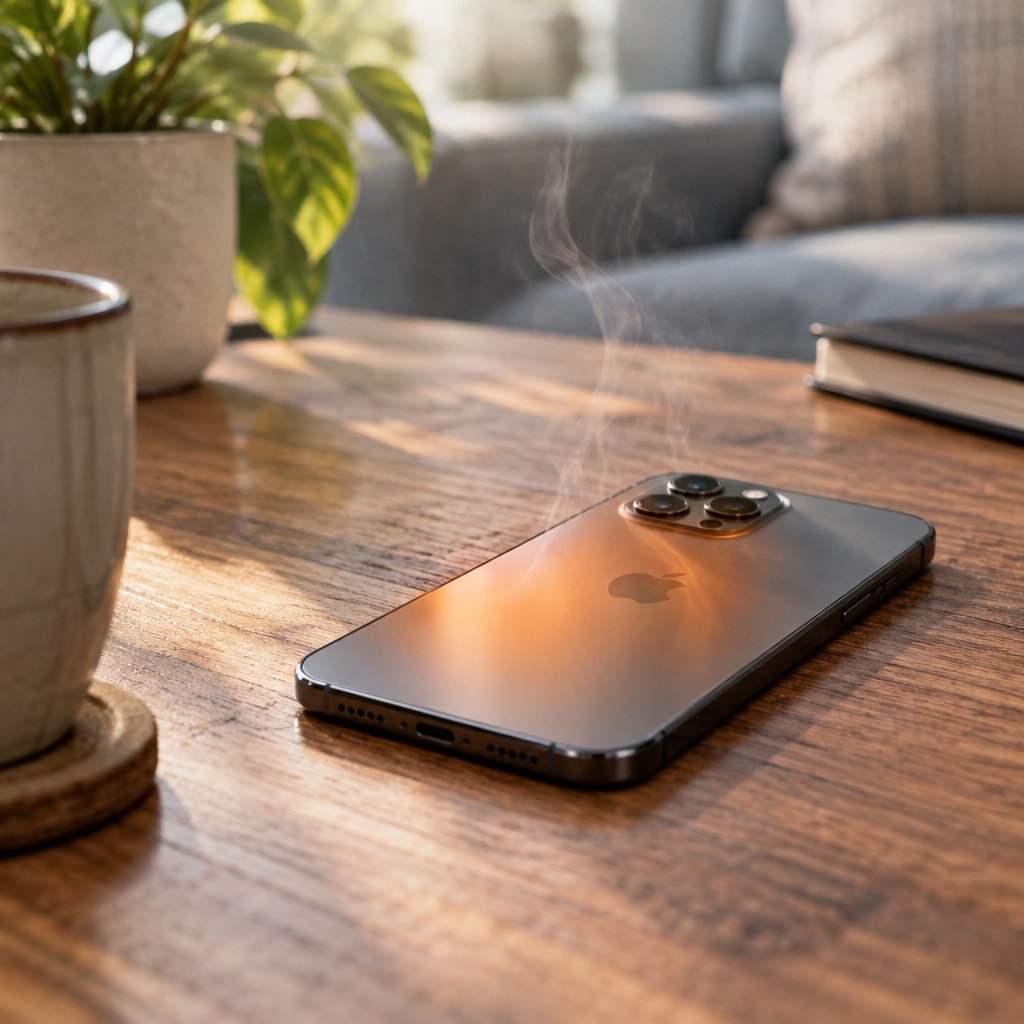
If your iPhone feels unusually hot, stop charging it, move it away from direct sunlight, remove the case, and let it cool naturally in a dry, shaded place. Stop using it immediately if you notice swelling, smoke, hissing, leaking, a chemical smell, or heat that is painful to touch. Do not cool it with water, ice, or a refrigerator.
Scope and definitions
This guide covers an iPhone that becomes warmer than expected during charging, gaming, navigation, video recording, setup, restoration, or ordinary use. “Overheating” here means sustained excessive heat, an iOS temperature warning, unexpected dimming or charging pauses caused by thermal protection, or physical signs suggesting battery failure. A brief temperature rise under heavy workload can be normal; dangerous heat, recurring warnings, and battery deformation are not.
Why an iPhone gets hot
The processor, graphics system, display, radios, battery, and charging circuitry all generate heat. The enclosure spreads that heat, while iOS reduces performance, dims the display, pauses charging, or disables features when internal limits are approached. Heat commonly increases with high ambient temperature, poor signal, wireless charging, a demanding app, background indexing after an update, or a damaged cable, charger, port, or battery.
Common causes
- Direct sun or a hot parked vehicle.
- Camera, navigation, games, video calls, or hotspot use.
- Weak cellular coverage that keeps radios working.
- Fast or wireless charging, especially while using the phone.
- Aging battery, hardware damage, or obstructed airflow.
- Software activity, stuck apps, or update-related indexing.
Safe cooling and diagnosis procedure
Before starting, have your passcode available and, if possible, a known-good Apple or appropriately certified charging cable and power adapter. Save open work. The first six steps should not erase data.
-
Stop the load
Disconnect charging, end processor-intensive tasks, lock the screen, and move the phone into shade at normal room temperature. If it is extremely hot or showing a temperature warning, turn it off. Wait until the enclosure feels normal before proceeding.
-
Remove heat traps
Take off the case and separate the iPhone from bedding, bags, dashboards, or other insulating surfaces. Keep ventilation around it. Do not place it in front of condensation-producing cooling equipment.
-
Inspect charging equipment
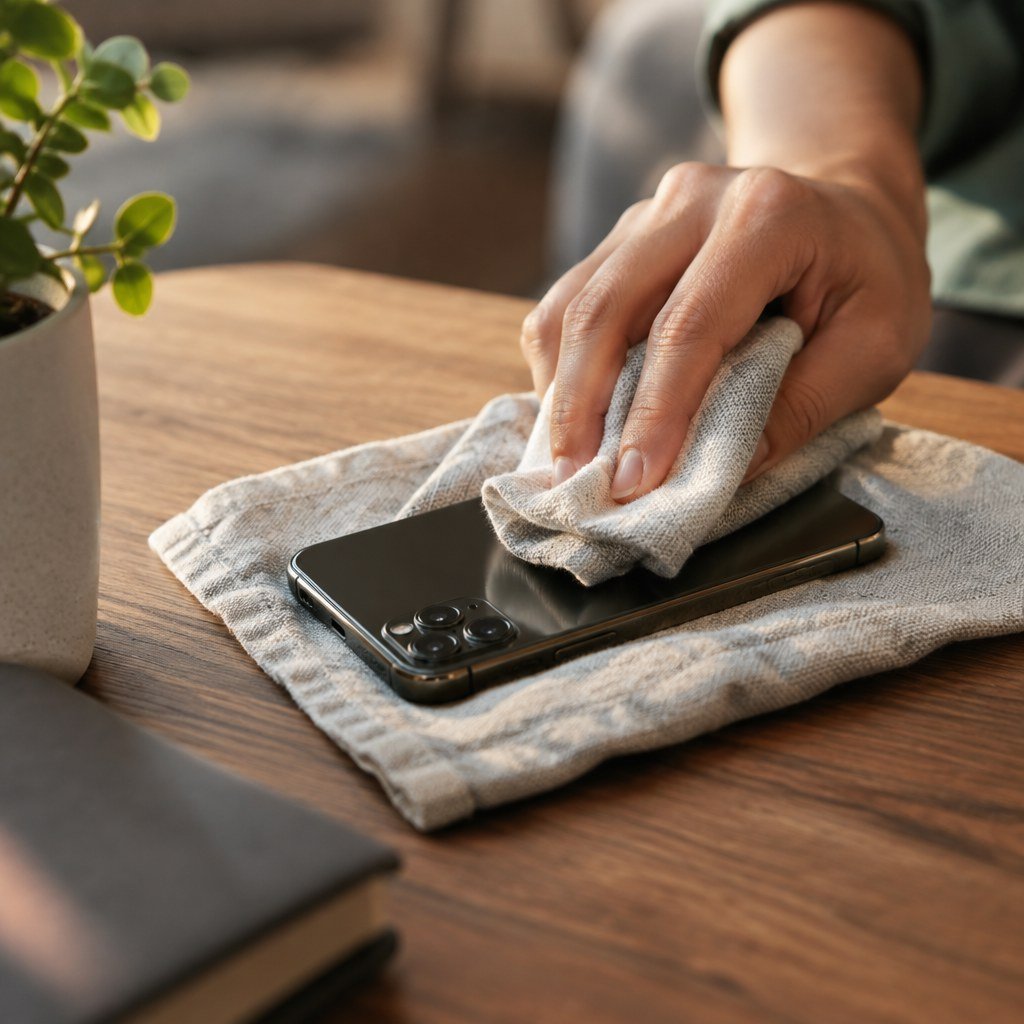
After cooling, examine the cable, adapter, connector, and port for discoloration, melting, bent contacts, liquid, or debris. Stop using damaged accessories. Never insert metal into the port. If liquid may be present, disconnect everything and allow the device to dry.
-
Restart and update
Restart the cooled iPhone. Then install available iOS and app updates because software faults can create sustained background activity. Keep the phone unplugged if charging reliably triggers heat.
-
Identify demanding activity
Open Settings, Battery and review activity by app. Look for an app consuming substantial background time or correlating with each heat event. Update, force-close for testing, or remove that app if it is nonessential.
-
Test under controlled conditions
Use the iPhone briefly at room temperature with its case removed and no charger connected. Then test charging with known-good equipment on a hard, open surface. Stop the test if heat rapidly returns or a warning appears.
Advanced fixes and reset warning
If overheating continues after updates and app isolation, first reset all settings through Settings, General, Transfer or Reset iPhone, Reset, Reset All Settings. Reconfigure and retest before considering an erase. A full erase and clean setup is a diagnostic last resort, not a battery repair; restore data only after confirming stable operation.
Validation and troubleshooting
A successful fix means the phone remains comfortable to handle, displays no temperature warning, charges consistently, and avoids unexplained shutdowns during the same controlled workload. Slight warmth alone is not proof of a defect.
If heat occurs only on cellular data, compare performance in a strong-signal location or on Wi-Fi. If it follows one charger, retire that charger. If it persists while idle after a restart, arrange professional diagnosis.
What not to do
- Do not put the iPhone in a refrigerator, freezer, ice bath, or water; rapid cooling and condensation can damage it.
- Do not keep charging through a temperature warning or use a visibly damaged cable, adapter, or battery.
- Do not puncture, press, bend, open, or replace a swollen battery yourself.
- Do not use canned air, metal tools, rice, or unverified cooling applications.
When professional repair is needed
Stop using the iPhone and seek qualified service if the battery or enclosure swells, separates, leaks, smells unusual, smokes, hisses, becomes painfully hot, or was crushed or exposed to liquid. Keep it away from flammable materials. For smoke or fire, move away and contact local emergency services.
FAQ
Is warmth while fast charging normal?
Some warmth is expected, but stop charging if a warning appears, heat becomes painful, or damage is clearly visible.
Will low power mode help?
It can reduce background work, but cannot correct a damaged battery, accessory, or charging port.
Related topics: battery health and charging-port cleaning.
Summary
Cool naturally; test carefully.
Review symptoms