
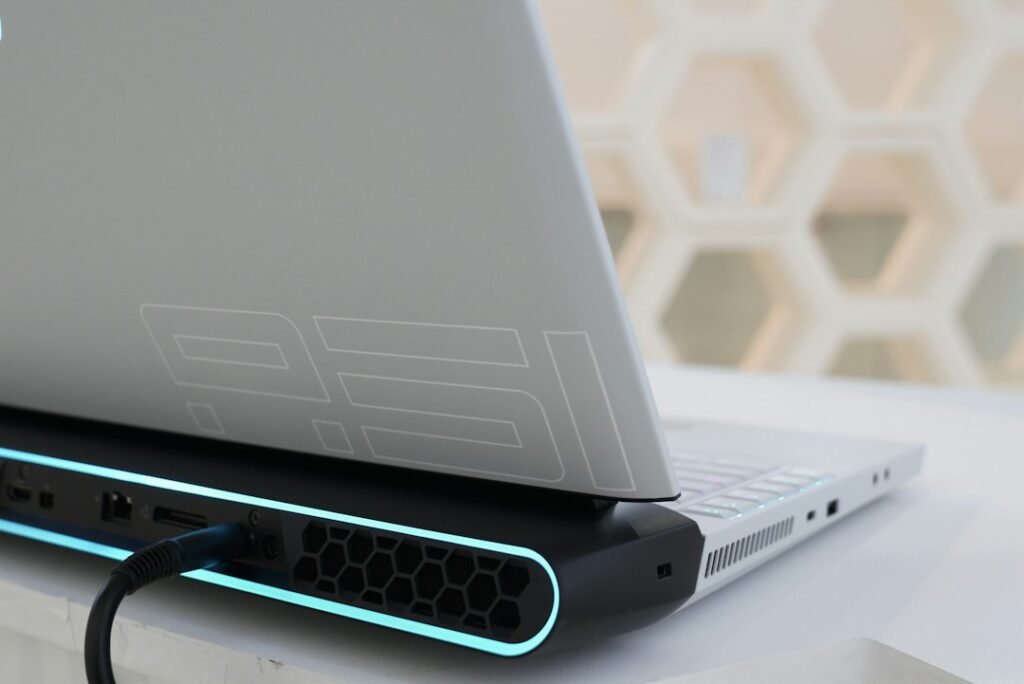
If a laptop runs hot, slows down, or shuts itself off, the cooling system may be struggling. Common causes include blocked airflow, heavy CPU or GPU use, dust, a fan problem, charging, or an aging battery. Start with the safest checks before opening the laptop.
Quick answer
Use the laptop on a hard surface, close heavy apps, check Task Manager for high CPU use, install normal system updates, and inspect the outside vents for dust. Stop using the laptop if the battery is swollen, there is an unusual smell, or the machine becomes dangerously hot.
1. Improve airflow
Move the laptop away from beds, cushions and blankets. Put it on a desk or table and keep the side and rear vents clear.
2. Close heavy apps
Gaming, video editing and many browser tabs can keep the processor busy. On Windows, open Task Manager and sort by CPU usage. Close apps you recognize and do not need.
3. Compare charging and battery use
Charging adds heat. If the laptop gets much hotter only while plugged in, test with the correct charger and avoid heavy workloads while charging.
4. Inspect external vents
Shut down and unplug the laptop. Check the vents with a flashlight. Remove loose dust from the outside gently. Avoid pushing tools deep inside the chassis.
5. Use balanced power settings
On Windows, open Settings > System > Power & battery and use a balanced or recommended mode for normal work.
6. Update Windows and manufacturer software
Install normal Windows updates. For firmware or BIOS updates, use the support page or update utility from the laptop manufacturer. Avoid random driver-updater tools.
7. Check for unwanted background software
If the laptop suddenly became hot while idle, run a scan with Windows Security and review recently installed programs.
8. Listen for fan problems
A fan that rattles, grinds, never spins, or repeatedly surges may need service. Repeated heat-related shutdowns are also a reason to stop and get the cooling system checked.
What not to do
- Do not use the laptop on a bed or pillow.
- Do not put liquid into vents.
- Do not open the cooling system unless you are comfortable with model-specific disassembly.
- Do not ignore battery swelling or unusual smells.
When professional repair is needed
Get qualified help if the laptop overheats during light use, powers off repeatedly, has a swollen battery, shows fan errors, or stays hot after the safe software and airflow checks above.
FAQ
Is a warm laptop normal?
Yes. Warmth during charging, gaming or video work is normal. Extreme heat, repeated shutdowns, swelling or unusual smells are not.
Will a cooling pad fix overheating?
It may improve airflow, but it will not fix a blocked heatsink, failed fan or battery problem.
Related HowToFixT guides
Featured photo: Alienware via Unsplash.