
Quick answer
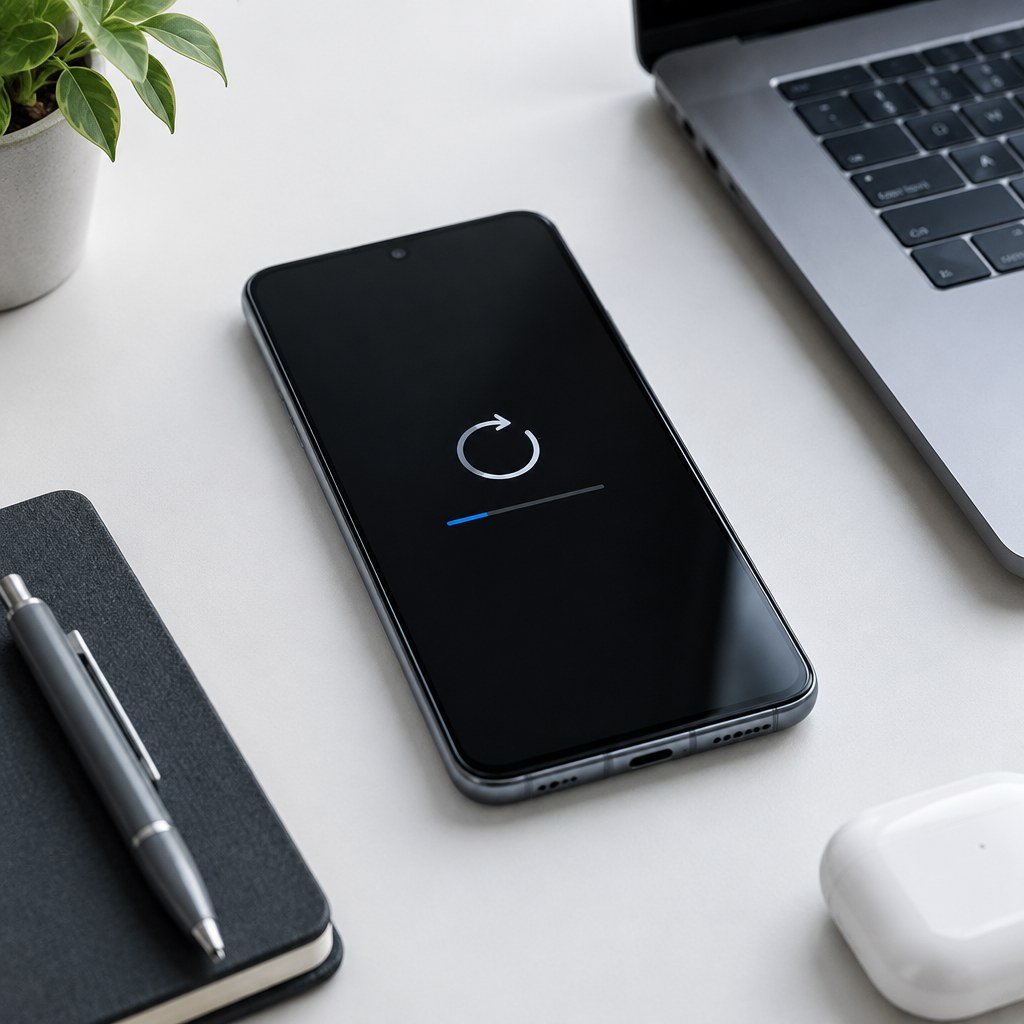
If your Samsung Galaxy keeps restarting, disconnect accessories, check whether it is overheating, restart normally if possible, review storage and updates, and test whether one app or charging accessory triggers the reboot. Back up important data before resets. If the phone restarts after a drop, liquid exposure, battery swelling or severe heat, stop troubleshooting and arrange qualified service.
Common causes
- A crashing or recently installed app.
- Low storage or unfinished software activity.
- Charging, battery or temperature problems.
- Physical or liquid damage.
Safe fixes to try
1. Remove external accessories
Disconnect USB devices, chargers and other accessories and test the phone on its own. Retire damaged charging equipment.
2. Let an unusually hot phone cool
Stop charging and demanding tasks and allow the phone to cool naturally. Never use water, ice or a freezer to cool electronics.
3. Check storage and updates
Review available storage and install trusted system and app updates when the phone is stable. Extremely low storage can contribute to poor performance and app instability.
4. Check recently installed apps
If the restarting began after installing or updating an app, update it again if a fix is available or remove it temporarily for testing. Avoid unknown “booster” and cleaner apps.
5. Test charging separately
If the phone restarts mainly while charging, stop using questionable cables or adapters and inspect the port for visible damage or moisture. Our Samsung phone not charging guide covers safer charging checks.
6. Back up before resets
If the problem persists but the phone remains usable, protect photos, contacts and other important data before using any reset option. A factory reset erases personal data and should not be the first troubleshooting step.
More ways to narrow down the cause
Check for enough space before updating
Software updates need free storage and stable power. If the device is nearly full, use Device care to review storage and remove only items you recognize. Avoid aggressive cleaner apps that promise automatic repair.
Observe the phone after each change
Change one thing at a time, then use the phone normally long enough to see whether the restart returns. This makes it easier to identify a faulty app, accessory or setting and avoids creating several new variables at once.
Prepare useful information for service
If professional service becomes necessary, note when the problem started, whether Safe mode changed it, whether it happens during charging, and whether there was a recent update, drop or liquid exposure. This information can make diagnosis more efficient.
What not to do
- Do not repeatedly erase the phone without a current backup.
- Do not puncture or press a swollen battery.
- Do not insert metal tools into a charging port.
When professional repair is needed
Arrange qualified diagnosis if restarts persist after safe software checks or follow a drop, liquid exposure or charging damage. Stop using the phone if it becomes painfully hot, swells, leaks, smokes, hisses or smells burnt.
Related guides
For heat-related symptoms see Samsung phone overheating fixes. For general performance problems see Android phone running slow.
FAQ
Does a random reboot always mean the battery is bad?
No. Apps, storage, software, accessories, temperature and hardware can all contribute. Diagnose the pattern before replacing parts.
Should I factory reset first?
No. Start with reversible checks and back up important data before any erase.