
If your iPhone battery seems to drop much faster than it used to, the cause is often a combination of settings, app activity, weak cellular signal, background syncing, screen brightness, or normal battery aging. The best approach is to check what is actually using power before changing lots of settings at once.
This guide focuses on simple changes that are easy to reverse and unlikely to cause problems. You do not need a battery-cleaner app, a jailbreak, or aggressive system tweaks.
Quick answer
Open Settings > Battery and look for the apps or activities using the most power. Then reduce unnecessary screen brightness, background refresh, location access and notifications. If the battery is older or iOS shows a service message under Battery Health & Charging, battery wear may be part of the problem.
Common reasons an iPhone battery drains quickly
- High screen brightness or long screen-on time
- Heavy social media, video, gaming or camera use
- Background App Refresh and frequent syncing
- Location services running too often
- Weak cellular signal causing the phone to search for service
- Recently installed app behaving badly
- Software update still finishing background tasks
- Battery has aged and stores less energy than before
1. Check Battery Usage first
Go to Settings > Battery. Review the last 24 hours and last 10 days if available. Look for an app that uses a surprisingly large share of the battery compared with how much you actually use it.
Also compare Screen Active and Screen Idle time. If one app shows lots of background activity, update it, reduce its permissions, or temporarily remove it to test.
2. Reduce screen brightness and screen-on time
The display is one of the largest power users on any phone. Lower brightness to a comfortable level and use Auto-Brightness if you prefer automatic adjustment. Also consider a shorter Auto-Lock time so the screen does not stay on after you stop using it.
You can find Auto-Brightness under Settings > Accessibility > Display & Text Size on current iOS versions.
3. Use Low Power Mode when you need longer runtime
Low Power Mode reduces some background activity, mail fetching, visual effects and automatic tasks. Turn it on from Settings > Battery > Low Power Mode.
It is useful when you are away from a charger, but it is not a repair for a worn-out battery. If battery life is poor every day, continue with the checks below.
4. Review Background App Refresh
Go to Settings > General > Background App Refresh. Apps that do not need to update in the background can be disabled individually.
Be selective rather than turning off everything. Messaging, navigation or work apps may rely on background behavior, while many games and shopping apps do not need constant refresh.
5. Check Location Services
Go to Settings > Privacy & Security > Location Services. Review which apps are set to use location Always. For most apps, While Using the App is enough.
If an app has no clear reason to know your location, you can deny permission. This can improve both privacy and battery life.
6. Watch for weak mobile signal
Poor cellular coverage can increase battery use because the phone keeps trying to maintain a connection. If battery drain is much worse in a basement, rural area or building with weak reception, signal quality may be a major factor.
If you are somewhere with reliable Wi-Fi but very weak mobile service, enabling Wi-Fi Calling—if supported by your carrier—may help with call reliability. Avoid changing network settings unless you understand what they do.
7. Update iOS and your apps
Install normal iOS updates from Settings > General > Software Update, and update apps through the App Store. Developers often fix battery-heavy bugs in app updates.
Right after a major iOS update, the phone may spend time indexing photos, files and search data. Temporary extra battery drain can happen while those background tasks finish.
8. Check Battery Health & Charging
Go to Settings > Battery > Battery Health & Charging. If iOS shows a service recommendation, or the battery has clearly lost a large amount of its original capacity, battery replacement may give a bigger improvement than changing more settings.
Battery-health information is a useful clue, but it should be considered together with real-world symptoms such as unexpected shutdowns, rapid percentage drops or poor runtime.
9. Restart and test after one change at a time
Restart the phone, then use it normally for a day after making the most relevant changes. Changing ten settings at once makes it harder to know what actually helped.
What not to do
- Do not install random “battery booster” apps that promise unrealistic improvements.
- Do not repeatedly force-close every app; iOS manages memory automatically and reopening apps can use extra power.
- Do not expose the phone to heat in an attempt to improve charging or battery performance.
- Do not open or puncture the battery yourself.
Frequently asked questions
Why did my iPhone battery start draining after an update?
Background indexing, app updates and syncing can temporarily increase power use after a major update. If the drain continues for several days, check Battery Usage for an app or process that stands out.
Does 5G use more battery?
Battery use depends on signal strength, network conditions and your activity. A weak or constantly switching connection can use more power than a stable one.
Should I replace my battery?
Consider professional battery service if runtime is poor despite normal settings, iOS shows a service message, or you experience shutdowns or rapid percentage drops.
Related HowToFixT guides
- iPhone Not Charging? 8 Safe Fixes to Try First
- iPhone Wi-Fi Connected but No Internet?
- More iPhone & iPad troubleshooting guides
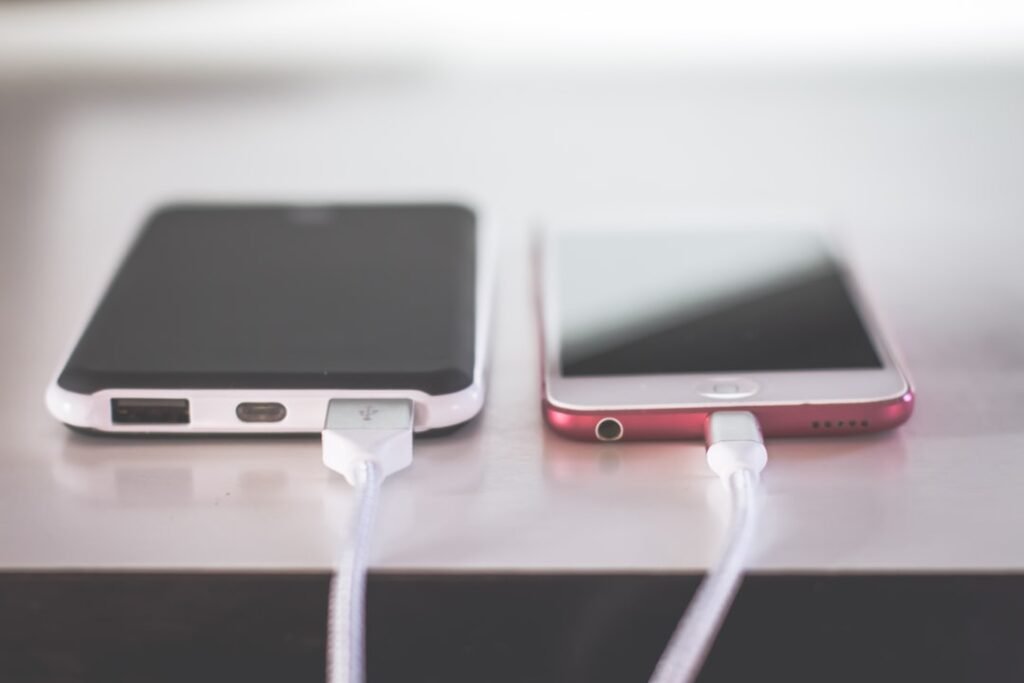
Featured photo: Steve A Johnson via Unsplash.
Pingback: Phone Battery Draining Fast? 9 Practical Fixes That Help - howtofixt.com
Pingback: iPhone Battery Draining Fast After an iOS Update? 9 Things to Check - howtofixt.com