
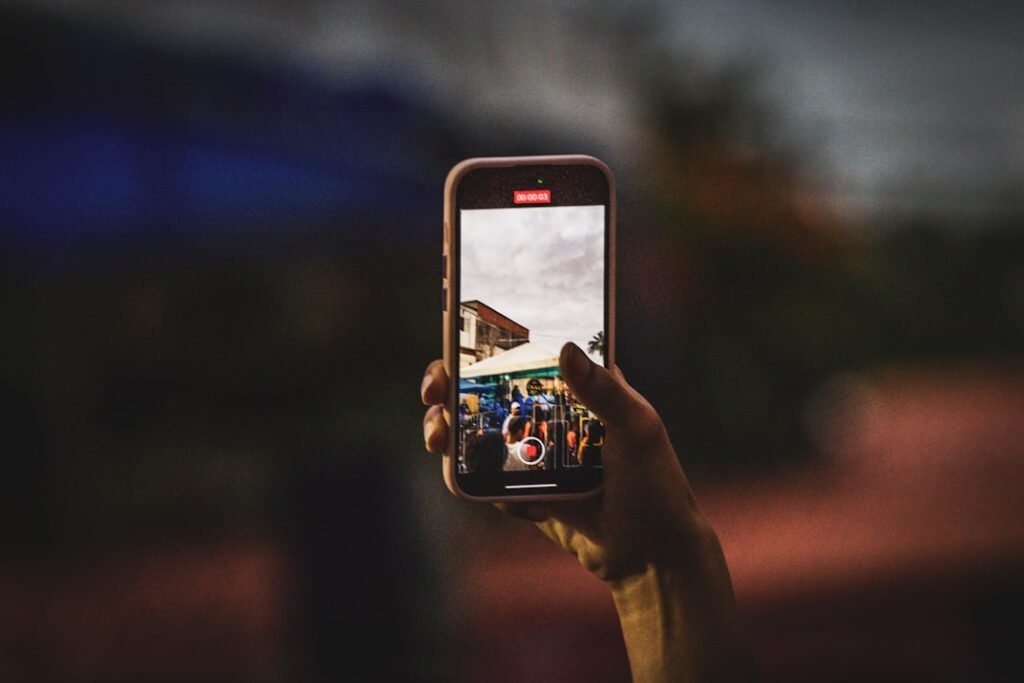
If your phone camera shows a black screen, looks blurry, freezes, or crashes, the cause is often a permission problem, low storage, a stuck camera process, another app using the camera, or an accessory interfering with the lens. Hardware damage is possible, but it is better to rule out the simple causes first.
Quick answer
Clean the lens, close and reopen the camera, restart the phone, check storage and camera permissions, test the front and rear cameras, remove lens covers or magnetic accessories, update the phone, and test the camera in another app. If only one camera fails everywhere, hardware service may be needed.
1. Clean the lens gently
Fingerprints, dust and oily residue can make photos look hazy or out of focus. Use a clean microfiber cloth and wipe the lens gently.
Avoid household cleaners, sharp tools and abrasive cloths.
2. Close and reopen the camera app
Fully close the Camera app from the recent-apps view and reopen it. A temporary camera service can become stuck after switching between apps.
3. Restart the phone
A normal restart clears temporary processes and can release the camera if another app has locked it. This does not delete your photos or settings.
4. Check camera permissions
If the main Camera app works but WhatsApp, Instagram or another app shows a black screen, check that app’s camera permission.
On iPhone, use Settings > Privacy & Security > Camera. On Android, open the app’s permission settings or the Permission Manager. Menu names vary by brand and software version.
5. Make sure there is enough free storage
If storage is nearly full, the camera may open but fail to save photos or videos. Free space carefully and restart the phone before testing again.
Do not delete important media until you have verified a usable backup.
6. Test front and rear cameras separately
Switch between the selfie and rear cameras. If only one camera stays black, shakes, cannot focus, or shows artifacts in every app, the problem may be limited to that camera module.
7. Remove cases, lens covers and magnetic accessories
Some cases, stick-on lens protectors and magnetic accessories can interfere with focus, stabilization or the field of view. Remove them temporarily and test the camera again.
8. Test another camera app
Try a trusted app that uses the camera, such as a video-calling app. If the camera works there but not in the main Camera app, the issue is more likely app-specific. If it fails everywhere, the problem is broader.
9. Update the phone and affected apps
Install available system updates and app updates from official sources. Camera and permission bugs are sometimes fixed in software updates.
10. Reset only camera settings if your phone offers it
Some phones include a reset option inside the Camera app settings. This can restore camera preferences without erasing the entire phone.
A full factory reset should not be an early camera troubleshooting step.
What not to do
- Do not install unknown “camera repair” or “camera booster” apps.
- Do not press hard on a damaged or loose lens.
- Do not factory-reset the phone before trying safer fixes.
- Do not open the phone unless you are qualified to repair it.
- Do not keep using a phone with broken glass exposing the camera area to moisture or debris.
When to get professional help
Seek repair help if the camera failed after a drop or liquid exposure, one camera remains black in every app, autofocus never works, the camera makes unusual clicking or grinding noises, or the image shakes continuously even after accessories are removed.
Frequently asked questions
Why is my camera black in only one app?
That usually points to an app permission, app-specific bug or temporary camera conflict rather than failed hardware.
Can low storage stop the camera?
Yes. The camera may open but fail to save photos or video when storage is critically low.
Why are my photos suddenly blurry?
Common causes include a dirty lens, lens protector, condensation, focus problems or camera-module damage. Clean the lens and remove accessories before assuming the hardware is faulty.
Related HowToFixT guides
- Phone Storage Full? 10 Safe Ways to Free Up Space
- Android Phone Running Slow? 10 Safe Ways to Speed It Up
- Phone Freezing or Apps Crashing? 9 Safe Fixes
- More Camera, Storage & Performance guides
Featured photo: Luciano Oliveira via Unsplash.
Pingback: Phone Storage Full? 10 Safe Ways to Free Space | HowToFixT