
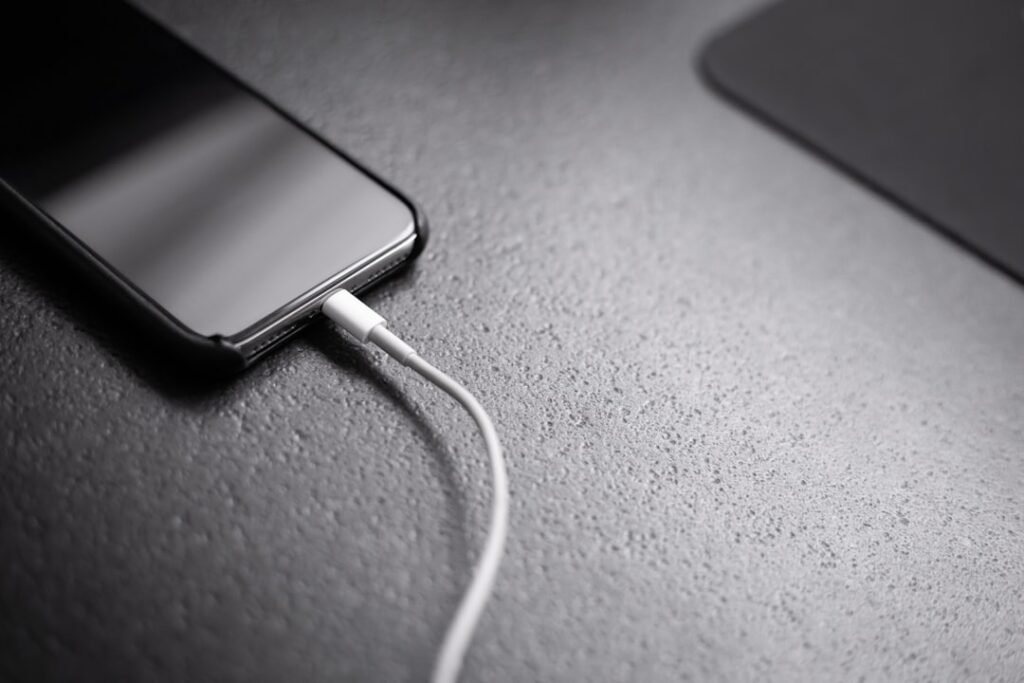
If your iPhone is not charging, the problem is often easier to narrow down than it first appears. A damaged cable, a weak power adapter, lint in the charging port, moisture detection, a deeply discharged battery, or a temporary software issue can all stop normal charging.
This guide starts with the safest checks first. You do not need to open the phone, disconnect the battery, or use metal tools. If the iPhone is swollen, unusually hot, smoking, leaking, smells burnt, or has obvious liquid damage, stop using it and get qualified repair help.
Quick answer
Try a known-good cable, power adapter and wall outlet. Inspect the charging port gently for lint or debris, leave the iPhone connected for at least 30 minutes, and restart it if the screen still works. If you see a liquid-detection warning, unplug the cable and let the port dry naturally before trying again.
Common reasons an iPhone will not charge
- Damaged or incompatible cable
- Faulty power adapter or wall outlet
- Lint, dirt or debris in the charging port
- Moisture detected in the connector
- Battery is deeply discharged
- Temporary iOS or charging-detection glitch
- Worn charging port or battery hardware problem
1. Test the cable, adapter and wall outlet
Start with the charging setup. Try another cable and another power adapter that you know works with an iPhone. Plug the charger directly into a wall outlet while testing rather than a computer USB port, hub or low-power extension accessory.
Check the cable ends for bent contacts, fraying, discoloration or looseness. If the cable or adapter becomes unusually hot, stop using it.
2. Inspect the charging port safely
Pocket lint can prevent the cable from seating correctly. Inspect the port with a flashlight. Do not insert tools or other objects into the connector. If debris is lodged inside or you are unsure how to remove it safely, arrange professional cleaning.
Do not use needles, pins, metal tweezers, liquids, compressed air or force. Damaging the connector pins can turn a small cleaning issue into a repair.
3. Leave the iPhone connected for at least 30 minutes
A completely drained battery may not show the charging icon immediately. Connect the phone to a reliable charger and leave it undisturbed for about 30 minutes before checking again.
If the iPhone is extremely hot or very cold, move it to a normal indoor temperature and try again later. Charging may pause when the device temperature is outside its normal operating range.
4. Restart the iPhone
If the screen still responds, restart the iPhone normally, reconnect the charger and watch whether the battery percentage begins to rise. A restart can clear temporary processes that interfere with charging detection.
If the phone is frozen, use the force-restart method appropriate for your iPhone model. A force restart does not erase your data, but it should not be confused with a factory reset.
5. Check for a liquid-detection warning
If a liquid alert appears, disconnect the cable at both ends. Leave the iPhone in a dry place with airflow. Wait at least 30 minutes before retrying; if the alert returns, allow more drying time, potentially up to 24 hours. Do not insert objects or use heat, rice, compressed air or cleaning liquids.
Trying to override the warning repeatedly can increase the risk of corrosion or electrical damage.
6. Try wireless charging if your model supports it
Only try wireless charging if the phone is safe to use and its back is completely dry. Remove a very thick or metal case and place the iPhone correctly on a compatible Qi or MagSafe charger. If wireless charging works but cable charging does not, the wired charging path—such as the cable or charging port—is more likely to be the problem.
7. Check iOS and battery information
If the iPhone turns on, check Settings > General > Software Update and install any appropriate update after backing up important data. Also review Settings > Battery > Battery Health & Charging for service messages or unusually reduced capacity.
Do not assume a low maximum-capacity number is the only reason charging has stopped completely. A failing cable, port or adapter can cause similar symptoms.
8. Know when repair is the safer choice
Arrange professional inspection if several known-good chargers fail, the port feels loose, charging works only at a certain angle, the phone repeatedly disconnects, or the battery shows signs of swelling.
What not to do
- Do not poke the charging port with metal objects.
- Do not pour cleaning liquid into the connector.
- Do not keep using a charger that is damaged, frayed, loose or overheating.
- Do not factory-reset the phone as an early troubleshooting step; it can cause unnecessary data loss.
Frequently asked questions
Why does my iPhone show charging but the battery percentage does not increase?
The charger may be supplying too little power, the phone may be too hot, an app may be using power heavily, or the battery may be worn. Test a reliable wall charger and let the phone sit unused for a while.
Can a dirty charging port stop an iPhone from charging?
Yes. Debris can stop the cable from seating correctly. Inspect the port without inserting objects; seek professional cleaning if debris is lodged inside.
Should I use rice after a liquid warning?
No. Let the iPhone dry naturally in a ventilated place. Rice can introduce dust and does not reliably dry the connector.
Sources and update notes
Charging and liquid-alert guidance checked: . Updated connector-safety and drying advice using the Apple Support pages below. This is a documentation review, not a hands-on test of every iPhone model.
Related HowToFixT guides
- Why Is My iPhone Battery Draining So Fast?
- iPhone Wi-Fi Connected but No Internet?
- More iPhone & iPad troubleshooting guides
Featured photo: Andreas Haslinger via Unsplash.
Pingback: Why Is My iPhone Battery Draining So Fast? 9 Practical Fixes - howtofixt.com
Pingback: iPhone Wi-Fi Connected but No Internet? 8 Fixes to Try - howtofixt.com
Pingback: Phone Charging Slowly? 9 Safe Fixes for Android and iPhone - howtofixt.com