
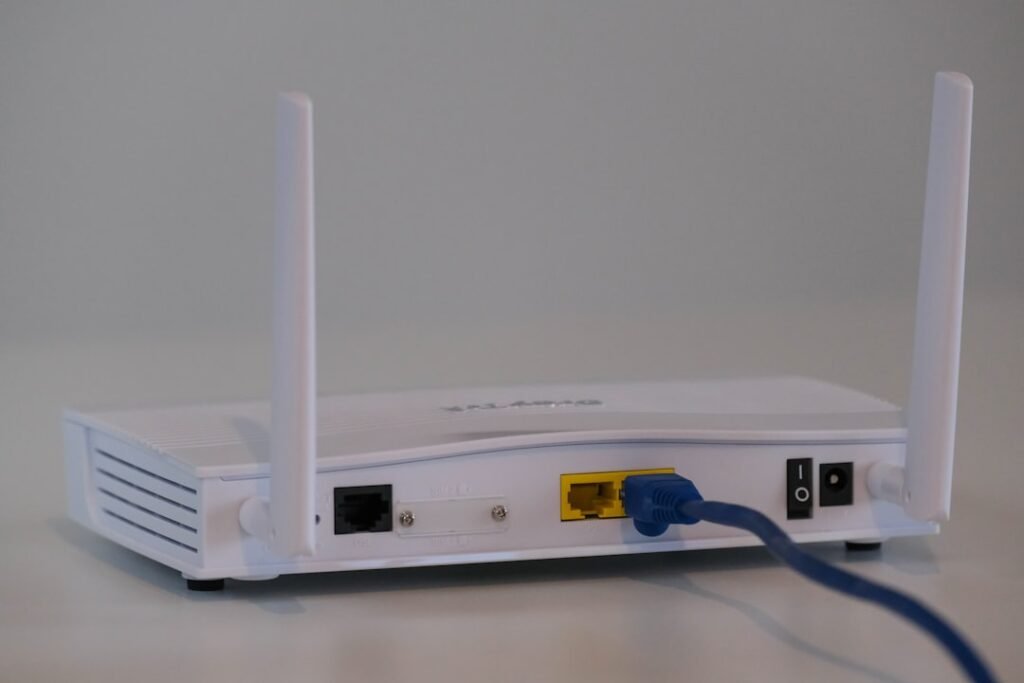
Your Android phone can show a strong Wi-Fi connection and still have no internet access. That usually means the phone has connected to the router, but something between the router and the wider internet is not working correctly. The cause may be the router, your internet provider, a saved network setting, a VPN, DNS, or one device-specific glitch.
Start with the simple checks below. Avoid factory resets or complicated network changes until you know whether the problem affects one device or every device on the network.
Quick answer
Test another device on the same Wi-Fi first. If every device is offline, restart the modem/router and check for an internet-service outage. If only your Android phone is affected, reconnect to the network, disable any VPN temporarily, restart the phone, and reset network settings only if the easier steps fail.
1. Test another device on the same Wi-Fi
Connect a second phone, tablet or computer to the same network.
- If nothing has internet access, focus on the router, modem or internet provider.
- If other devices work normally, the issue is more likely on your Android phone.
This one check prevents a lot of unnecessary phone troubleshooting.
2. Turn Wi-Fi off and back on
Open your phone’s quick settings or Wi-Fi settings, turn Wi-Fi off for about 10 seconds, then turn it on again. Reconnect to your usual network and test a normal website.
If the connection immediately drops again, move closer to the router and continue with the next steps.
3. Restart the phone and network equipment
Restart the Android phone. If several devices are affected, also restart the modem and router.
- Unplug the modem and router from power.
- Wait about 60 seconds.
- Reconnect the modem first and let its lights settle.
- Reconnect the router and wait for Wi-Fi to return.
- Test the phone again.
Do not press the small hardware reset button on the router. A normal power restart is much safer because it does not erase your internet settings.
4. Forget the Wi-Fi network and reconnect
If only the phone is affected, open the Wi-Fi settings, select the network, choose the option to forget or remove it, then join again with the correct password.
This clears an old saved configuration that may no longer match the router.
5. Temporarily disable VPN or private DNS changes
A VPN, ad blocker, security app or custom DNS setting can occasionally stop internet traffic even though Wi-Fi itself is connected.
Temporarily disable the VPN and test again. If you changed Private DNS manually, switch it back to Automatic while troubleshooting. Menu names vary by Android brand, so use your Settings search if needed.
6. Check date and time
Incorrect date or time settings can cause secure websites and apps to fail. Set date and time to automatic, then restart the affected app or browser.
7. Check whether the internet service is down
If all devices are offline, use mobile data to check your provider’s service-status page or support channel. Also look at the router’s Internet or WAN light. A red, amber or missing internet light can point to a provider or line problem.
8. Reset network settings only if needed
If other devices work but your Android phone still cannot get online, use the phone’s network reset option. Depending on the manufacturer, it may be called Reset Wi-Fi, mobile & Bluetooth or Reset network settings.
This normally removes saved Wi-Fi networks and Bluetooth pairings, so reconnecting devices will be necessary afterward.
9. Update Android and the affected apps
If the problem started after an update or appears only in certain apps, install available system and app updates. Restart once more after the updates finish.
What not to do
- Do not factory-reset the phone as a first step.
- Do not repeatedly press the router’s reset button.
- Do not install random “Wi-Fi repair” or “speed booster” apps.
- Do not share your Wi-Fi password publicly when asking for help.
When to get professional help
Contact your internet provider if every device remains offline after a normal restart, especially if the router shows an internet-line warning. If only one Android phone fails on several known-good Wi-Fi networks, the phone may need deeper software or hardware diagnosis.
Frequently asked questions
Why does Android say connected without internet?
The phone has reached the local router, but the router may not have a working internet connection, or the phone’s VPN, DNS or saved network settings may be blocking traffic.
Will forgetting Wi-Fi delete my photos or apps?
No. It only removes that saved Wi-Fi connection and password from the phone.
Should I reset my router?
Use a normal power restart first. A factory reset can erase provider and Wi-Fi settings and should be avoided unless you know how to configure the router again.
Related HowToFixT guides
- iPhone Wi-Fi Connected but No Internet?
- More Wi-Fi & Connectivity troubleshooting guides
- Android Phone Running Slow? 10 Safe Ways to Speed It Up
Featured photo: Compare Fibre via Unsplash.
Pingback: Bluetooth Not Connecting to Your Phone? 10 Fixes That Usually Help - howtofixt.com
Pingback: Phone Keeps Disconnecting from Wi-Fi? 9 Fixes for Android and iPhone - howtofixt.com
Pingback: WhatsApp Messages Not Sending or Receiving? 10 Fixes to Try - howtofixt.com
Pingback: Wi-Fi Keeps Disconnecting? 10 Router Fixes | HowToFixT
Pingback: Wi-Fi Slow on Every Device? 10 Ways to Improve Home Internet Speed - howtofixt.com